A Workspace for Every Team
This post is part of the Stride 3.0.0 announcement. Workspaces are part of the Organization plan.
Once more than one team uses Stride, the Boards page gets crowded. The mobile team’s release board sits next to marketing’s campaign board and the platform team’s migration. Everyone sees everything they’ve been added to, in one long list, and nobody can tell at a glance which boards belong together.
Stride 3.0.0 adds workspaces. An Organization can have as many as it needs, such as one per team or one per product. Each workspace holds its own boards and has its own people.
Switching workspaces
If you belong to an Organization, a workspace switcher sits at the top of the sidebar, just under the Stride logo. Open it to see the workspaces you’re in, with an orange dot next to the one you’re in now.
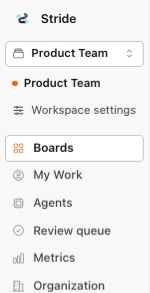
Choose a workspace and the Boards page shows it first. The page groups your boards into three sections:
- the workspace you’re in, such as Product Team, with its boards;
- Personal boards: the boards you made for yourself, outside any workspace;
- Other shared boards: boards other people have shared with you.
Your other pages don’t change when you switch. My Work, Agents, the Review queue and Metrics still cover everything you can see.
Creating workspaces
Org-admins create workspaces from the Organization console. Open Organization in the sidebar, choose Workspaces, type a name and choose Create workspace.
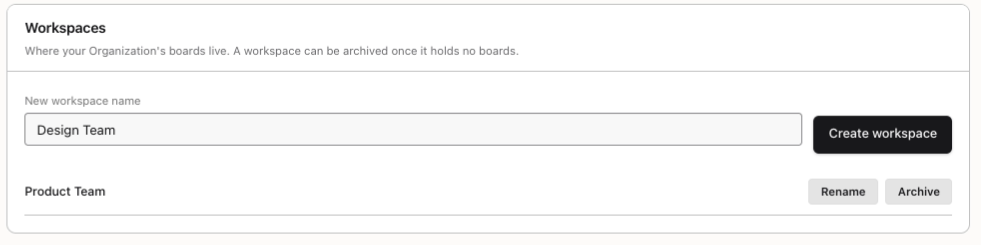
Each workspace can be renamed at any time. Once it holds no boards, it can be archived. Archiving can’t be undone, and it revokes the workspace’s tokens and open invitations.
Who’s in a workspace
Everyone in a workspace is either a Member or a Guest:
- Members can create boards in the workspace.
- Guests work only on the boards they’re invited to.
Choose Workspace settings in the switcher to see who’s there. Org-admins can change someone’s role, or remove them.
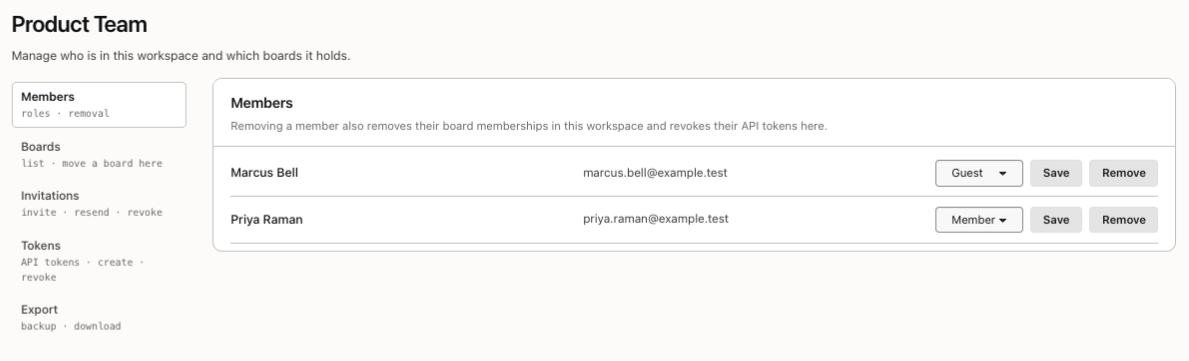
Removing someone from a workspace also takes away their board memberships and API tokens there, and any tasks they had claimed go back to Ready.
Being in a workspace doesn’t open all of its boards for you. You still work on the boards you’ve been added to. The exception is org-admins: they can open and manage every board in their Organization’s workspaces, without being added to each one.
Inviting people
Org-admins invite people from the Invitations tab. Enter an email address and choose a role. You can also give the person access to one board straight away, as Read only or Can edit.
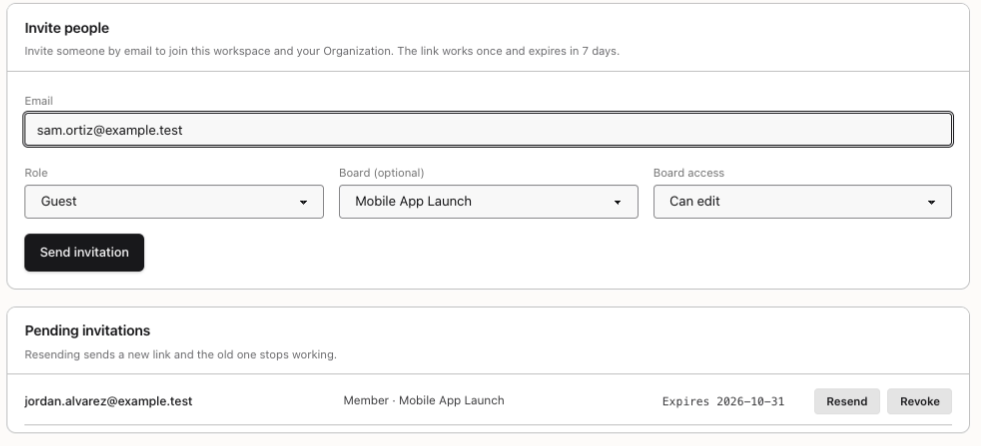
Stride emails a link that works once and expires after 7 days. Pending invitations are listed underneath, where you can resend or revoke them. Resending sends a new link, and the old one stops working.
The person who opens the link signs in or creates an account with the address it was sent to. Accepting it adds them to the workspace and to your Organization.
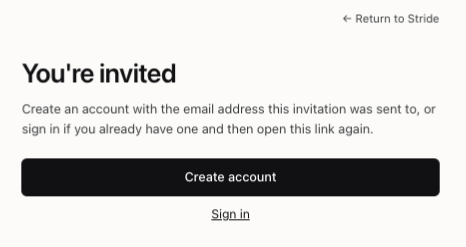
The page never shows who invited you, or to what, until you’re signed in with the right address.
Bringing your boards in
A board you made before your Organization existed is one of your personal boards. To bring it in, an org-admin who owns it opens Workspace settings, chooses Boards, picks it under Move a board here and chooses Move here.
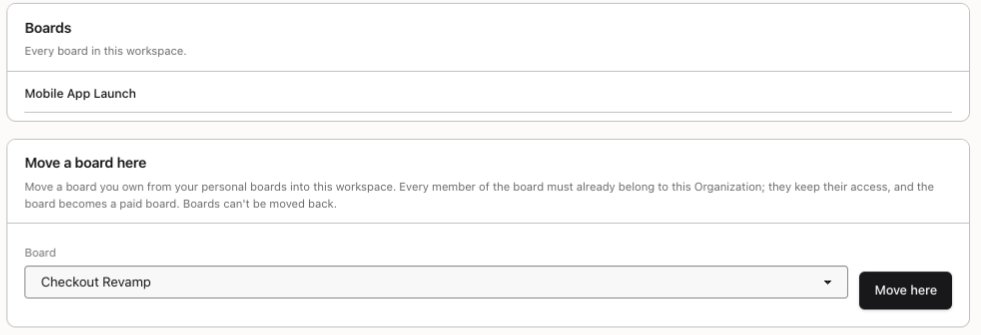
Everyone on the board must already belong to the Organization, and they all keep their access. If someone doesn’t, Stride names them, so you can invite them to the workspace or take them off the board first. Moving a board can’t be undone.
Once the board is in a workspace, it’s a paid board: the 3-person limit lifts and every Organization feature switches on, from notifications to integrations. From then on, only members of your Organization can be added to it.
New boards land in the workspace you’re in when you create them, as long as you’re a Member there or an org-admin.
One token for all your agents
Agents use API tokens to work on boards. Until now, every board needed its own token. A workspace has its own kind: a workspace token, which an org-admin creates on the Tokens tab.
One workspace token reaches every AI Optimized board in the workspace that its creator can change. Each request names the board it’s for, and agents can ask for the list of boards the token can use. Workspace tokens expire after 90 days. They stop working as soon as they’re revoked, or when the org-admin who made them leaves the Organization.
Exporting a workspace
Org-admins can download a whole workspace from the Export tab, as a backup or to move it to another Stride instance.
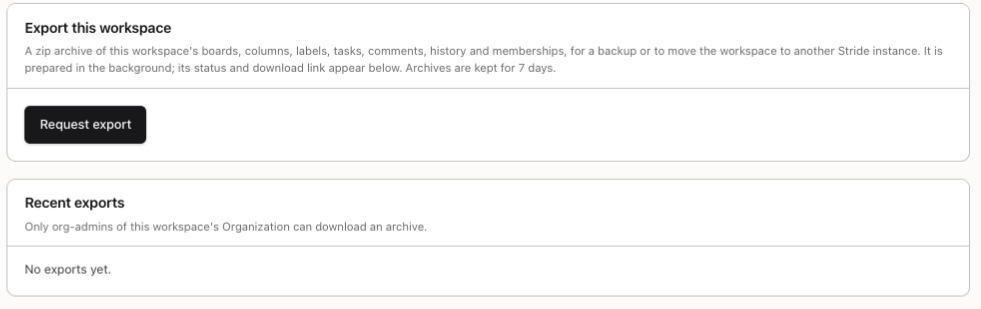
Choose Request export, and Stride builds a zip of JSON files in the background. When it’s ready, it appears under Recent exports with a Download button, and it’s kept for 7 days. The archive holds the workspace’s boards, columns, labels, tasks, comments, history and memberships. It never holds passwords, API tokens or webhook secrets.
Moving to your own server? A self-hosted Stride restores the archive with mix kanban.import_workspace. Moving the other way, we import it for you.
Light and dark
Like the rest of Stride, workspaces follow your light or dark theme, and every screen is translated into every language Stride supports.
Why it matters
- Each team gets its own space. The Boards page shows the team’s boards first, and everything else stays out of the way.
- The right people, nobody extra. Members create boards, guests see only what they’re invited to, and org-admins can reach every board.
- Invitations that are safe to send. Links work once, expire in a week and reveal nothing until the right person signs in.
- One token, many boards. Agents work across a workspace without a token per board.
- Your data is yours. Export a workspace at any time, with no secrets in the archive.
Workspaces come with the Organization plan. The Organizations post shows the console org-admins use, and the workspaces reference has every detail.