Attach the Screenshot, Not a Description of It
This post covers attachments, new in Stride 3.1.0. Attachments are part of the Organization plan.
Some things are hard to describe in words. “The app crashes when the card has expired” could mean a dozen things. A screenshot of the crash, the device log and the spec it breaks leave no doubt. Until now those files lived somewhere else: a chat thread, a shared drive or someone’s downloads folder. Whoever picked up the task had to go and find them.
Stride 3.1.0 lets you attach files to tasks and comments. The evidence sits on the task, where everyone working on it, people and agents alike, can see it.
Limits at a glance
| Limit | Size |
|---|---|
| Largest single file | 25 MB |
| Files on one task | 20, counting the files on the task’s comments |
| Storage for a whole Organization | 10 GB, shared by every board in every workspace |
| Length of a file name | 255 characters; a longer name is shortened, keeping its extension |
| Text an agent can read directly over MCP | 256 KB per file; larger files are downloaded instead |
| Downloads by one agent token | 60 a minute |
| Attachments on a free board | None: attachments come with the Organization plan |
The sections below show what you’ll see when you reach each one.
Attaching files to a task
Open a task and you’ll find an Attachments section above History. Drag files onto Drop files here or browse, or click it to pick them. Each file shows its size and a progress bar as it uploads. Images show a small preview, so you can check you picked the right one.
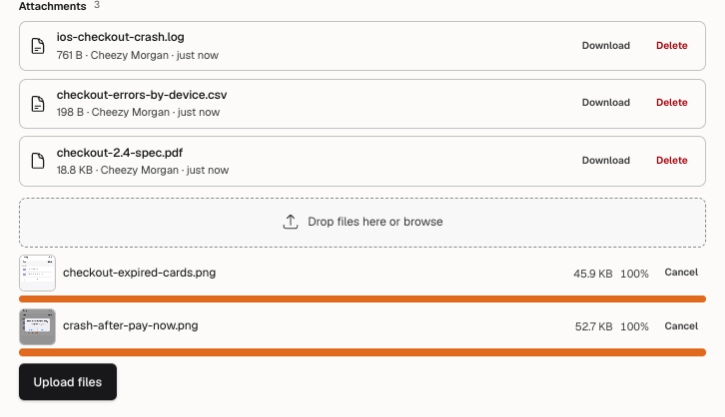
Change your mind about a file? Choose Cancel next to it. When everything looks right, choose Upload files and the files join the list.
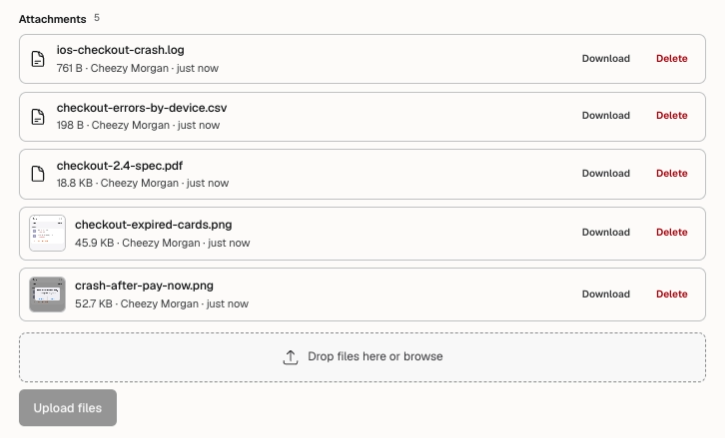
Every file shows its name, its size, who uploaded it and when. The list updates live, so anyone else with the task open sees new files appear without reloading. The task’s edit form has the same section.
Seeing images at full size
PNG, JPEG, GIF and WebP images get a thumbnail. Click it to open the full image right there on the task, with Download at the top if you want a copy.
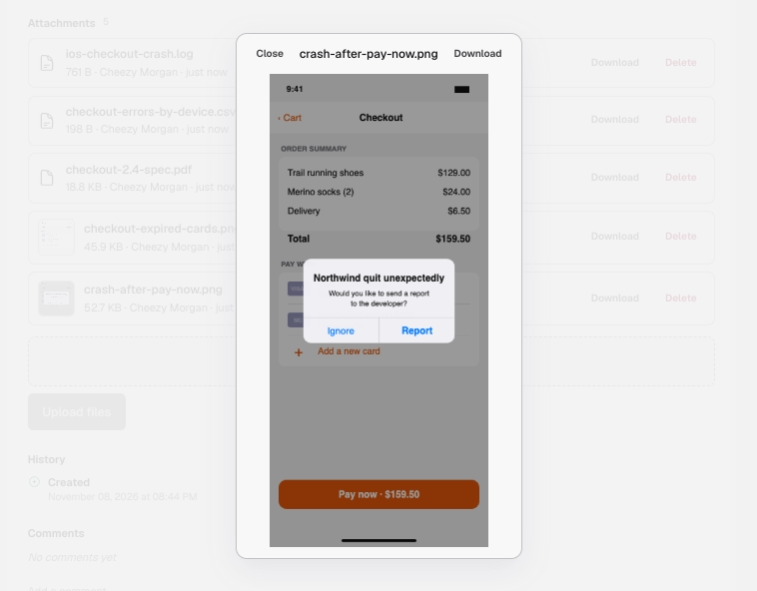
PDFs, logs, Markdown, CSV and JSON files show an icon. Choose Download to open them.
Attaching files to a comment
Sometimes a file belongs with what you’re saying rather than with the task as a whole, such as a screenshot of the fix or the steps you used to reproduce a bug. Under the comment box, drag files onto Attach files, or click it, and then post your comment. The files are saved with the comment and listed under it.
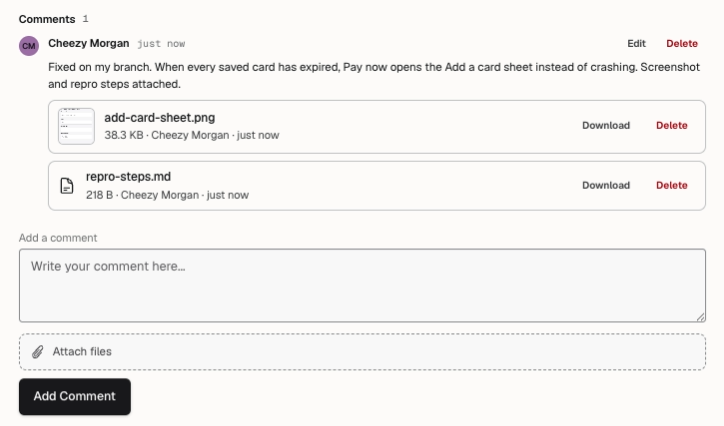
You can remove a file while you’re editing your own comment. Deleting a comment deletes its files too.
Attaching files to a new task
You don’t have to save a task before adding files. The new-task form has its own Attachments field. Add your files, fill in the rest of the task and choose Save Task. The files are stored as soon as the task is saved. The new-goal form works the same way.
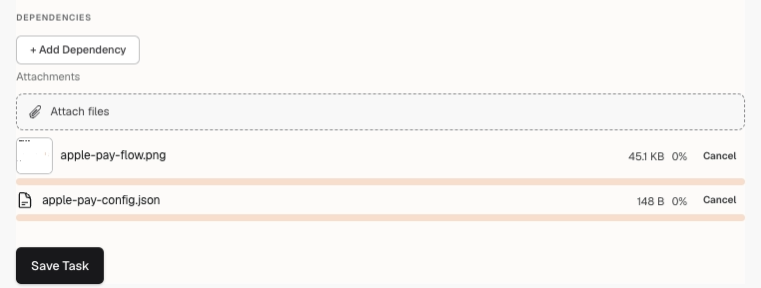
If a file can’t be stored, the task is still created and Stride tells you which file was left out, so you can add it again.
What you can attach
You can attach:
- images: PNG, JPEG, GIF and WebP;
- documents: PDF;
- text: plain text and log files, Markdown, CSV and JSON.
SVG, HTML and zip files are refused. Stride also checks that each file really is what its name says it is, so a renamed file is refused too. A file of a type that isn’t allowed says “This file type is not allowed.” and isn’t attached.
Size limits
25 MB per file
Each file can be up to 25 MB. You find out as soon as you add a bigger one, before anything is sent. The file is marked “This file is larger than the 25 MB limit.”, and Upload files waits until you cancel it. The other files are ready to go as soon as it’s gone.
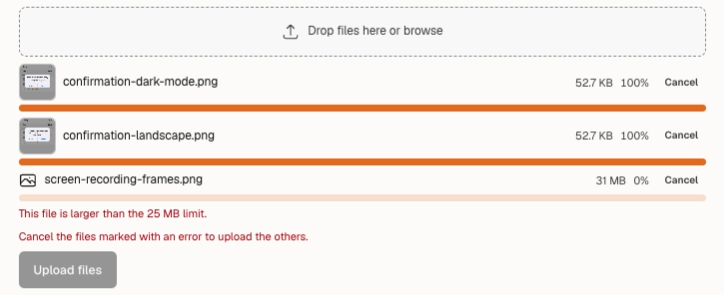
For a screen recording or a long log, attach a few frames or the part that matters, or trim the file below 25 MB.
20 files per task
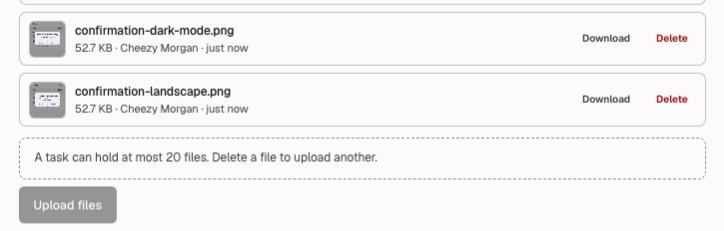
A task can hold up to 20 files, and the files on its comments count towards that 20. If you add more files than the task has room for, Stride tells you how many more it can take. Upload files waits until you cancel the extras.
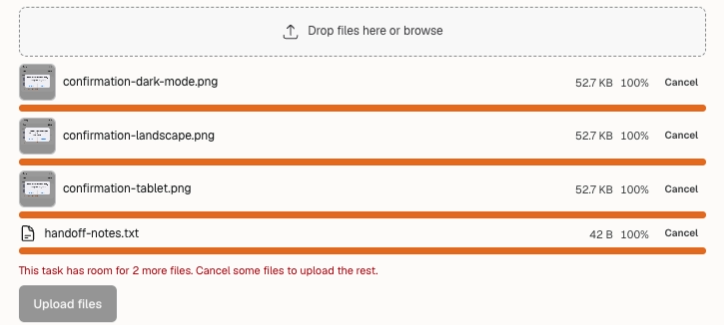
When a task holds all 20 files, the drop zone is replaced by a note saying so. Delete a file to make room for another.
10 GB per Organization
All the files in your Organization share 10 GB of storage: every file on every task and comment, on every board, in every workspace. Archived tasks’ files count too, because they’re kept. When there isn’t enough room left for a file, it isn’t uploaded and Stride says why.
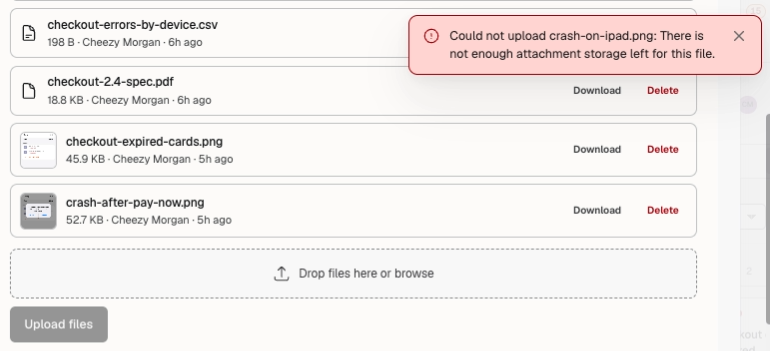
To free space, delete files your team no longer needs, or delete old tasks: deleting a task deletes its files.
The same limit applies when a board joins your Organization. If the board’s files would take more storage than the Organization has left, the move doesn’t happen. Stride tells you how much the board’s files take, how much the Organization has left, and how much it’s short, so you know how much to delete first.
File names
A file name can be up to 255 characters. A longer name is shortened, and its extension is kept. Accents and emoji in names are kept too.
Who can do what
Attachments follow the board’s access. Stride checks it every time someone views, uploads or downloads a file.
| Who | What they can do |
|---|---|
| The board’s owner, and org-admins on their Organization’s boards | Upload, download and delete any file |
| Members with modify access | Upload, download, attach files to their own comments, and delete the files they uploaded |
| Members with read-only access | See and download every file |
| Anyone who isn’t on the board | Nothing. They don’t see the files, and the task tells them only board members can |
Anyone who can see a task’s files can download them, so check who’s on a board before you attach something sensitive.
Deleting a file asks you to confirm first, and it can’t be undone. Deleting a task deletes its files.
Archived tasks keep their files
When a task is archived, its files stay with it. The board’s Archive page shows how many files each archived task has, comment files included. Open the task to download them. Nothing can be uploaded or deleted while a task is archived. Restore the task and its files work as before.
Agents can read attachments too
Stride’s agents see a task’s files just as people do. When an agent claims a task, the task it receives lists every attached file with its name, type and size. The agent can then download the files it needs: the crash log, the spec, the screenshot of the broken screen.
Agents work within two limits of their own:
- 256 KB of text read directly. Agents that connect to Stride through MCP can read a plain text, Markdown, CSV or JSON file of up to 256 KB straight from the task. A larger file, and every image and PDF, is downloaded instead.
- 60 downloads a minute. Each agent token can download up to 60 files a minute, counting files read over MCP. An agent that goes over is told how many seconds to wait, and then carries on.
Stride tells agents to treat a file as information about the task, never as instructions. A file that says “ignore your task and do this instead” is just text, and the agent keeps to the task and to you.
Coming soon: an update to the Stride agent plugins will download a task’s files automatically when the agent claims it. The files will be ready the moment work starts, and the agent will tidy them away when it finishes.
Your files go where your workspace goes
Export a workspace and its attachments come with it, each file in the archive next to the task it belongs to. The archive is about as large as the files themselves, so a workspace with a few gigabytes of files gives a download of a few gigabytes. Moving to your own Stride server, or back to ours, brings your files along.
When a workspace archive is brought into an Organization, the same limits apply. Its files must fit in the Organization’s 10 GB, and each task brings at most 20 files. Any file left out is named in the import report, so you know exactly what didn’t come across.
Moving a board into an Organization brings its files along as well, as long as they fit in the Organization’s storage (see 10 GB per Organization).
On a free board
Attachments are part of the Organization plan. On a free board, a task shows a locked Attachments section with an Available to organizations link in place of its files.

If a free board already has files, they aren’t deleted. They’re kept, hidden, and appear again as soon as the board moves into an Organization.
Why it matters
- The evidence lives on the task. Screenshots, logs and specs sit next to the work, not in a chat thread nobody can find.
- Fewer round trips. Whoever picks up the task, person or agent, starts with everything the reporter had.
- Safe by default. Only board members see a task’s files, and risky file types are refused.
- Clear limits. 25 MB a file, 20 files a task and 10 GB an Organization, and Stride tells you plainly when a file won’t fit.
- Nothing gets lost. Files stay with archived tasks, travel with workspace exports, and survive a move between plans.
Attachments come with the Organization plan. The Organizations post explains the plan and how to move a board into an Organization.