Sign In Through Your Identity Provider
This post is part of the Stride 3.0.0 announcement. Single sign-on is part of the Organization plan.
Your company already has one place where people sign in: Okta, Microsoft Entra ID, Google Workspace or another identity provider. That’s where new starters get their accounts, where multi-factor authentication is set up, and where access is switched off when someone leaves. Until now, Stride was one more password to manage on the side.
Stride 3.0.0 adds single sign-on for Organizations. Your people sign in through your identity provider, their first sign-in creates their Stride account, and your identity provider’s multi-factor authentication protects them. With SCIM provisioning, your identity provider can also add people, keep their workspaces in step with its groups, and take their access away when they leave.
What your people see
The Stride sign-in page now has a second way in. Under the usual email and password, there’s a box for a Work email for single sign-on and a Sign in with SSO button.
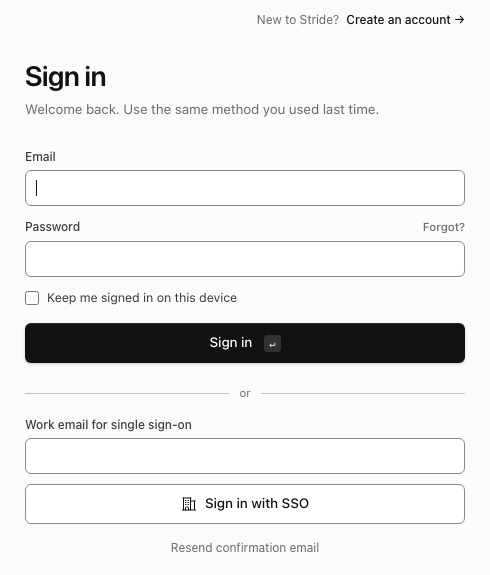
Someone types their work email and chooses Sign in with SSO. Stride looks at the domain, finds your Organization’s identity provider and sends them there to sign in. When they come back, they’re in.
The first time someone signs in this way, Stride creates their account and makes them a member of your Organization. Nobody has to invite them first. If they already have a Stride account with the same email, Stride links it instead. If that account has two-factor authentication turned on, Stride asks for their code once, to confirm it’s really them, and never again after that.
Each person’s account settings have a Single sign-on tab that explains how it works for them.

Setting it up
Org-admins set up single sign-on from the Organization console: open Organization in the sidebar and choose Single sign-on. It takes two steps: prove that you own your email domain, then connect your identity provider.
1. Verify your email domain
Stride signs people in through your identity provider only if their email address is on a domain your Organization has verified. Type your domain into Email domain and choose Add domain.
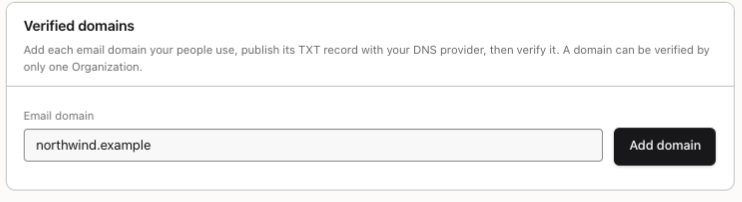
Stride then gives you a DNS TXT record to publish, named _stride-verification. followed by your domain. Add it with your DNS provider and choose Verify. DNS changes can take a while to appear, so if Stride can’t find the record yet, wait and try again.
A domain can belong to only one Organization. Stride also checks every verified domain again each day. If the record goes missing three days in a row, the domain stops being verified, and nobody on it can sign in through single sign-on until you verify it again.
2. Connect your identity provider
Stride speaks two protocols. Use OpenID Connect if your identity provider supports it, as most do. In your identity provider, register Stride as an application with the Redirect URI Stride shows you. Then enter the Issuer URL, Client ID and Client secret it gives you, tick Allow sign-in through this identity provider, and choose Save connection.
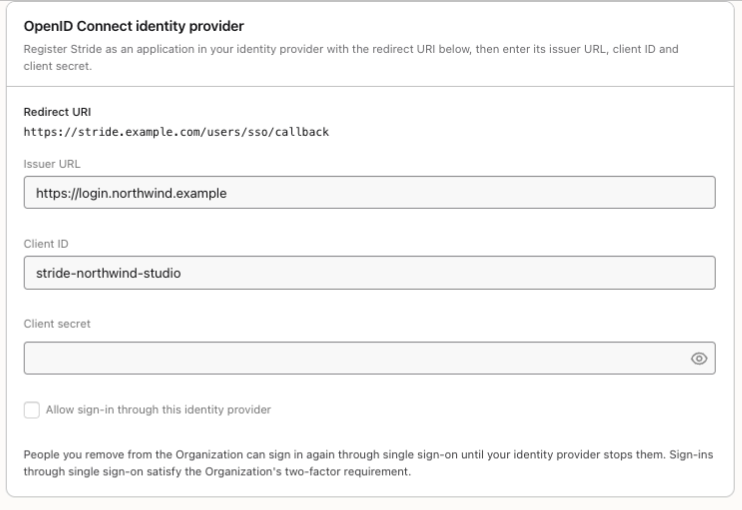
The client secret is stored encrypted, and Stride never shows it again. To change it, type a new one; leave the box empty to keep the one you have.
If your identity provider only speaks SAML 2.0, use the card below. Give your identity provider Stride’s entity ID and assertion consumer service URL, or download Stride’s metadata file. Then paste your identity provider’s metadata XML, or fill in its entity ID, sign-in URL and signing certificate yourself.
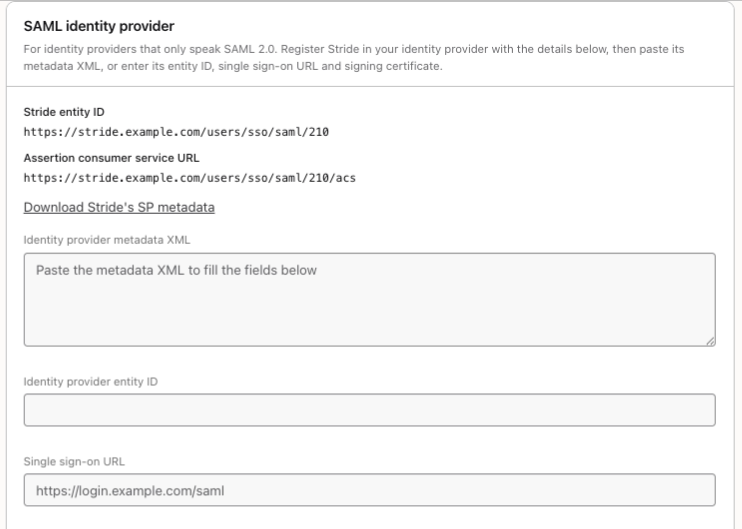
You can keep two signing certificates at once, so you can rotate to a new one without a gap. Stride’s SAML support is tested with responses from Microsoft Entra ID and Okta. If you use another identity provider, try it before you turn sign-in on.
Built to be safe
Signing in is the front door, so single sign-on is careful about who it lets through:
- Only your domains. Stride creates or links an account only for an email on a domain you’ve verified, and only when your identity provider confirms the address.
- Matched by identity, not email. Once linked, Stride recognizes someone by their identity at your provider, not just by the email address they type.
- No borrowed sign-ins. Every sign-in uses one-time codes that expire after 10 minutes. Stride checks the signature on what your identity provider sends back, and refuses a SAML response it has already seen.
- No surprise admins. Single sign-on never makes anyone an org-admin, and it never signs in a Stride site admin.
- One Organization each. Someone who already belongs to another Organization can’t be pulled into yours.
Every sign-in, every refused sign-in, every new or linked account, every domain verified or lost and every change to the connection is written to your Organization audit log.
Single sign-on doesn’t turn passwords off. Anyone who has a password can still use it, and a person whose account was made through single sign-on can set one with Forgot?. So when someone leaves, switching them off in your identity provider stops their single sign-on, but not a password they’ve set. That’s what SCIM is for.
SCIM: let your identity provider manage your people
With SCIM provisioning, your identity provider does the joining and leaving for you. It can add people to your Organization, update them, keep their workspace memberships in step with its groups, and remove them the moment you switch them off there.
Open Organization, choose SCIM provisioning, and give your identity provider two things: the SCIM base URL and a token you create here.
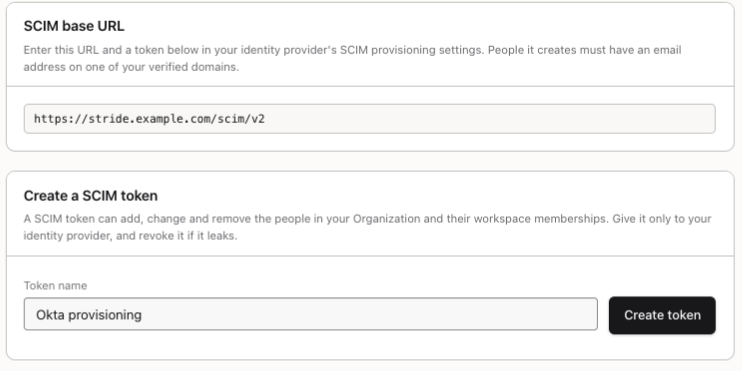
Stride shows each token once. Give it only to your identity provider, and revoke it if it ever leaks.
When your identity provider removes someone, Stride takes them out of your Organization, its workspaces and its boards, and revokes their API tokens. It also keeps them out of single sign-on until your identity provider brings them back.
Requiring two-factor, the easy way
An Organization’s security policy can require two-factor authentication for every member. People who sign in through single sign-on already meet that requirement, because your identity provider handles their multi-factor authentication. When they sign in that way, Stride doesn’t ask them to set up two-factor as well. The Organizations post shows the policy.
Why it matters
- One sign-in. Your people use the account they already have, with the multi-factor authentication your company already requires.
- No invitations needed. Anyone on your verified domain can sign in and join, the first time they try.
- Clean offboarding. With SCIM, switching someone off in your identity provider takes away their Stride access too.
- Your choice of protocol. OpenID Connect for most identity providers, SAML 2.0 for the rest.
- Every step recorded. Sign-ins, refusals and setup changes are all in your audit log.
Single sign-on comes with the Organization plan. The single sign-on reference and the SCIM reference have every detail.