One Place to Run Your Team's Stride
This post is part of the Stride 3.0.0 announcement.
When a whole company uses Stride, someone needs to look after it: who’s in, which teams have which boards, how people sign in, and what has changed. Until now, every board was managed on its own, by its owner, and nobody could see the whole picture.
Stride 3.0.0 adds Organizations. An Organization brings your people, your workspaces and your security settings together in one place, run by its org-admins.
Getting started
The Organization plan is set up with you directly. Choose Talk to us on the pricing page, or email enterprise@letstango.ca. We create your Organization and appoint your first org-admin by email. If that address doesn’t have a Stride account yet, we create one and send instructions for setting a password.
From then on, people join your Organization in three ways:
- an org-admin invites them to a workspace by email (Workspaces shows how);
- they sign in through your identity provider for the first time, with single sign-on;
- your identity provider adds them with SCIM.
A person belongs to one Organization at a time.
The Organization console
Org-admins see Organization in the sidebar. It opens the Organization console.
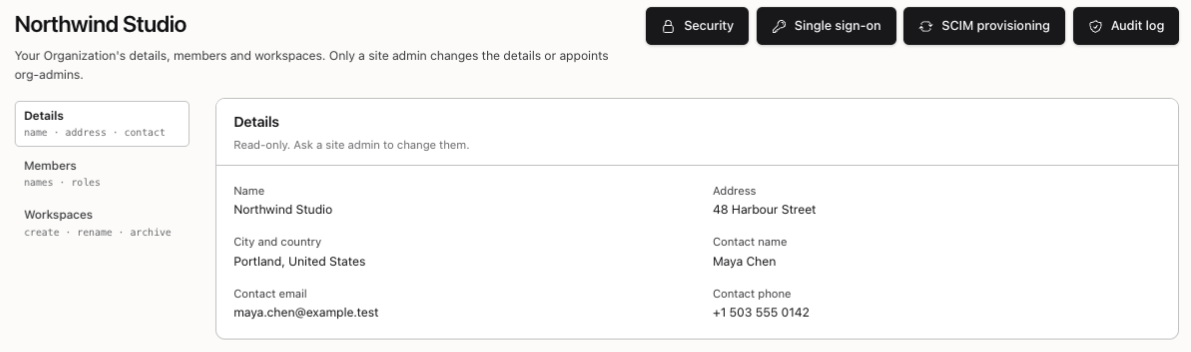
The console has three tabs:
- Details: your Organization’s name, address and contact. These are read-only here; ask us if anything changes.
- Members: everyone in your Organization.
- Workspaces: where your boards live.
The buttons across the top lead to your Security policy, Single sign-on, SCIM provisioning and the Audit log.
Members
The Members tab lists everyone in your Organization, org-admins first.
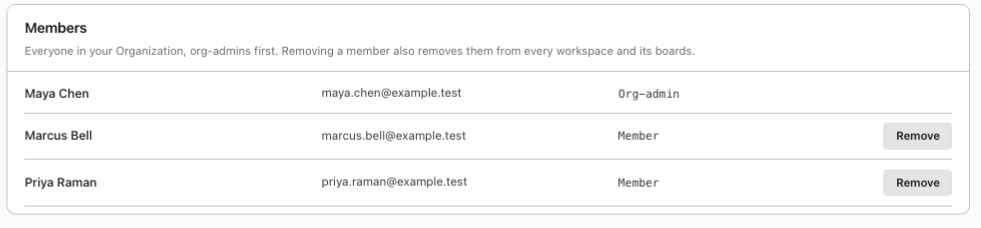
Removing a member takes them out of every workspace and every board in your Organization at once. Their API tokens there are revoked, tasks they had claimed go back to Ready, and webhook endpoints they added are switched off. It’s the one place to make sure someone who has left can’t keep working on your boards.
Org-admins are appointed by Stride, not by each other, so one org-admin can never quietly add or remove another. Ask us when you need to change who your org-admins are.
Workspaces
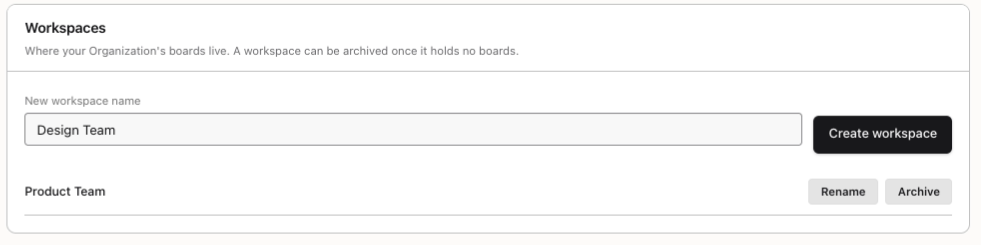
The Workspaces tab is where org-admins create, rename and archive workspaces.
The Workspaces post covers what goes on inside one: members and guests, invitations, moving boards in, workspace tokens and exports.
What org-admins can do
Org-admins look after every board in your Organization’s workspaces. They can open and manage any of them, as its owner would, without being added to each one. That means a board never gets stranded when the person who made it is away or has left.
Every board in a workspace is a paid board. There’s no limit on how many people it holds, and every Organization feature is switched on: notifications, integrations, bulk actions, the task telemetry fields and MCP access. Only members of your Organization can be added to these boards, so nobody outside it ends up on one by mistake.
The audit log
Choose Audit log to see your Organization’s security events, newest first.

The log records the things that matter for security:
- members joining and leaving, and org-admins being appointed or removed;
- workspaces created, renamed and archived;
- every single sign-on sign-in, refused sign-in, new account and linked account;
- domains being verified, or losing their verification;
- changes to the single sign-on connection and the security policy;
- SCIM tokens being created, revoked or refused, and every person SCIM adds, changes or removes;
- attempts to do something without permission;
- every export of the log itself.
Each event shows when it happened, what happened, who did it, and the details.
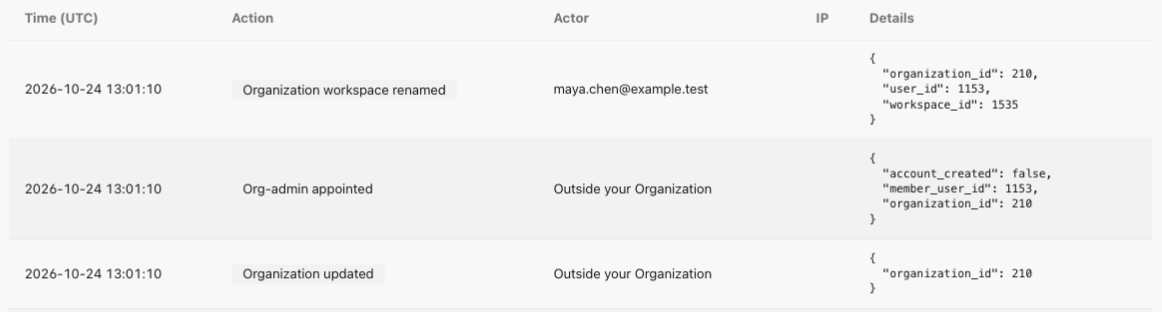
When someone outside your Organization did something, such as Stride’s staff appointing an org-admin, the log says Outside your Organization. It doesn’t show their email address or where they connected from: your log is about your Organization, and theirs stays private too.
Filter by kind of event and by date to find what you need. Export CSV and Export JSON download the events that match your filters, up to 50,000 at a time.
Your security policy
Choose Security to set your Organization’s policy. It has two settings.
Require two-factor authentication
Tick Require two-factor authentication for every member to make sure everyone protects their account with a second step.
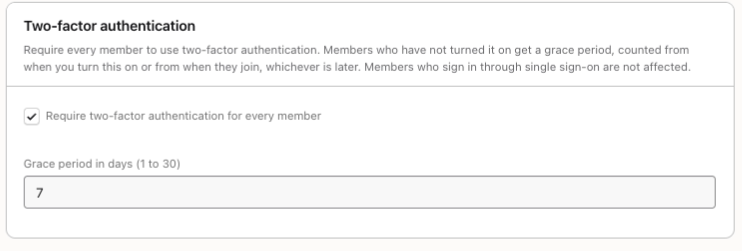
Members who haven’t turned two-factor on yet get a grace period, between 1 and 30 days (7 unless you choose otherwise), counted from when you turn the policy on or from when they join, whichever is later. Until then, they see a reminder with the deadline on every page. After it, they have to set up two-factor before they can carry on.
Members who sign in through single sign-on aren’t affected, because your identity provider already handles their multi-factor authentication.
How long to keep the audit log
By default, your audit events are kept forever. To keep them for a set time instead, enter a number of days. A daily job then removes events older than that.
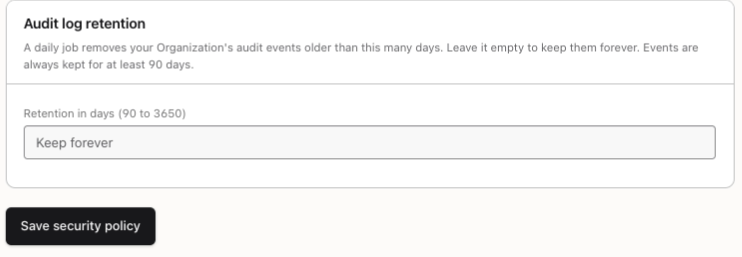
Events are always kept for at least 90 days. Choose Save security policy to apply your changes. Every change to the policy is itself recorded in the audit log.
Leaving an Organization
There’s always someone in charge. A person can delete their own Stride account from their settings, but not while they’re the last org-admin of an Organization that still has other members.
Why it matters
- One place to look after everyone. See who’s in your Organization and remove someone everywhere at once.
- No stranded boards. Org-admins can reach every board in your workspaces.
- Nobody on a board by accident. Organization boards accept only Organization members.
- A record you can trust. The audit log shows what changed and who changed it, and you can export it for your own records.
- Security you can require. Make two-factor mandatory, with a fair grace period, and let single sign-on cover it for people who use it.
Organizations come with the Organization plan. The Organizations reference and the security policy reference have every detail, or talk to us about your team.